Documentation · JStats 1.0.7
JStats documentation
The JStats plugin adds tracking code to the head section of your Joomla site – for Matomo and Google Analytics alike. Installation and configuration take a few minutes; here is every step with a screenshot.
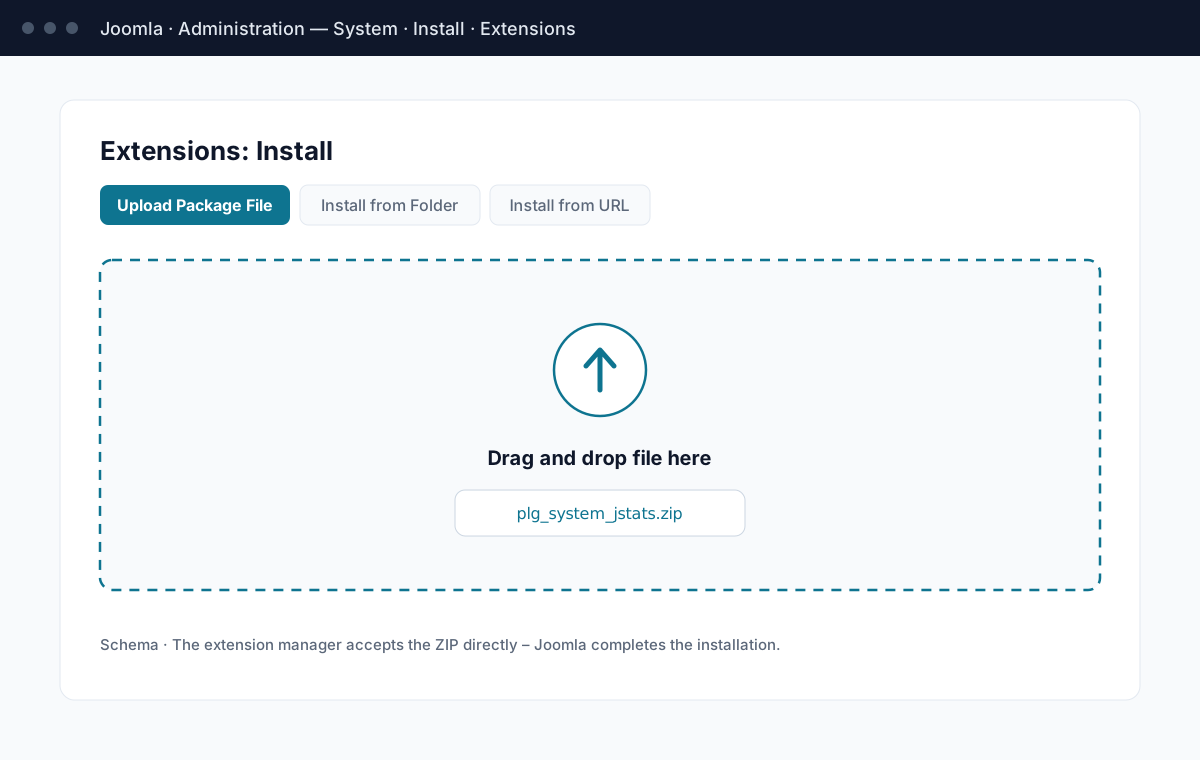
Step 1: Install the plugin
Download the ZIP, then go to the Joomla Extension Manager (System → Install → Extensions), upload the file and let Joomla complete the installation.
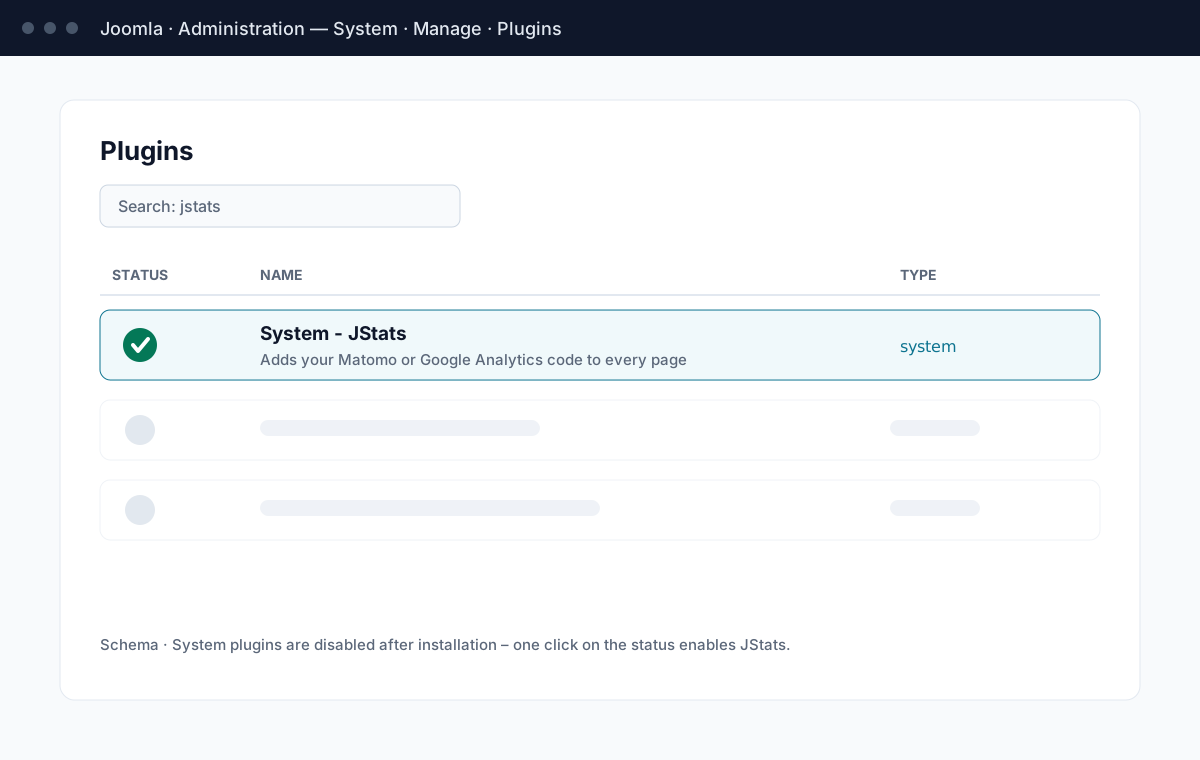
Step 2: Activate the plugin
Open the Plugin Manager in the admin panel, locate “JStats” and activate it – system plugins are disabled after installation by default.
Step 3: Configure the plugin
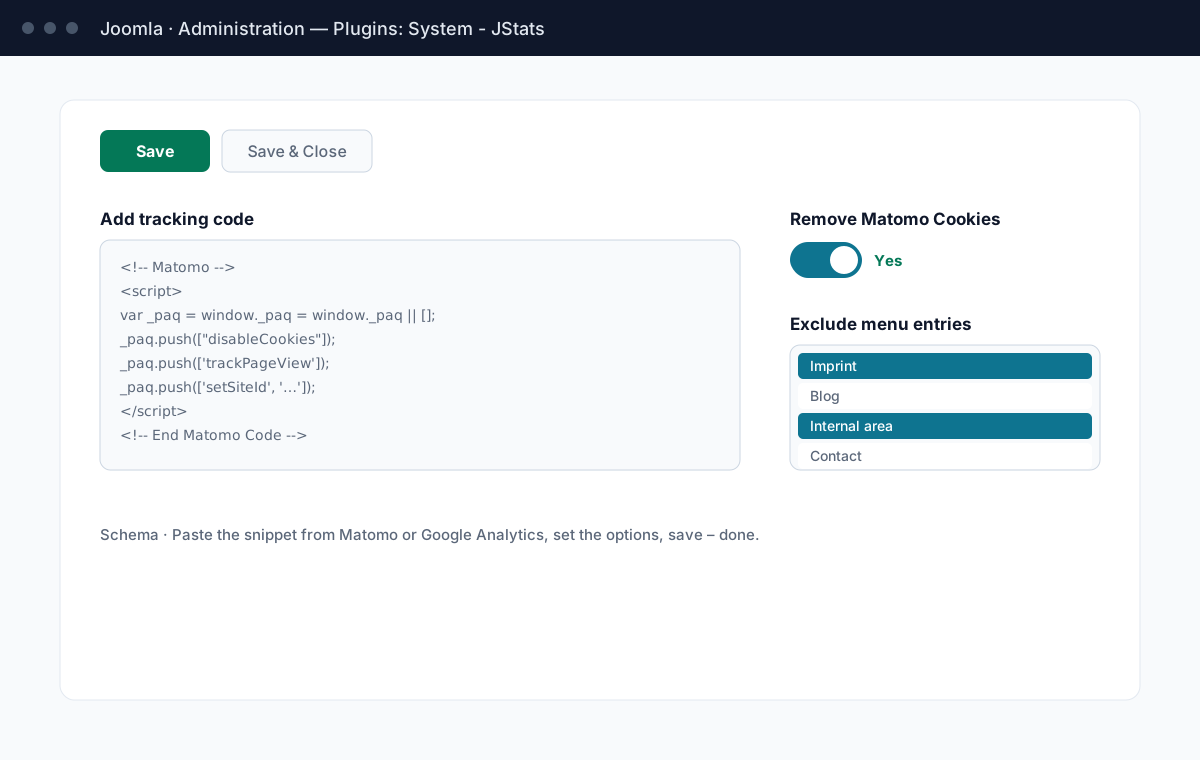
Open the plugin settings, paste your tracking code from Matomo or Google Analytics, adjust the options below if needed, and save.
The options, explained
- Add tracking code
- Paste the snippet provided by Matomo or Google Analytics. JStats inserts it into the head section of every page via Joomla's addCustomTag – nothing else is modified.
- Remove Matomo cookies (optional)
- Prevents Matomo from setting cookies – cookieless measurement that supports a privacy-friendly, GDPR-lean setup. This switch is Matomo-specific; details and the honest legal footnote are in the FAQ.
- Exclude menu entries
- Select Joomla menu items that should not be tracked – internal pages, legal pages, test areas. Multi-select with Ctrl/Cmd; a walk-through is on the demo page.
After the setup
Clear the Joomla cache (System → Clear Cache), open your site in a private browser window and check your analytics tool for the visit. Updates arrive via the built-in Joomla Updater; version history is in the changelog, help on the support page.